Create your first shortcut
Start simple and, before you know it, you’ll have mastered the process
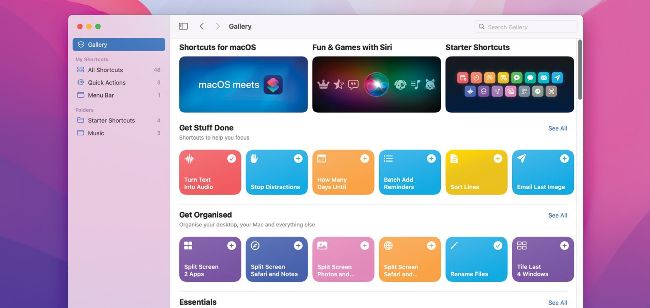
The Shortcuts app has a Gallery full of ready–to–use shortcuts, making it easy to get started.
CREATING YOUR OWN Shortcuts if you’re starting from scratch can be quite daunting. So Apple has a Gallery of pre–cooked Shortcuts in the app. All you have to do is decide which ones you want to use and how you want to activate them. Once you’ve got used to the way shortcuts work, you can edit them to make them do different things, or dive right in and create your own.
When it comes to triggering shortcuts, you have a choice of using Siri, a keyboard shortcut, Spotlight, or placing an icon for the shortcut in the menu bar or Dock, or by including it in Quick Actions or the Services menu. In this article, we’ll start by showing you how to use and modify an existing shortcut and then move on to creating your own simple shortcut. We’ll use stock macOS apps for the tutorial, but once you’ve got to grips with how Shortcuts work and feel more confident, you’ll want to explore how you can improve on them, perhaps by replacing stock apps with third–party tools.